

.webp?language=en-US)

Text Prompting, Part 2: Unlocking the Power of Parameters in Midjourney
by Qing Lana Luo, PLA, ASLA, Afshin Ashari, OALA, Radu Dicher, ASLA, LFA, Phillip Fernberg, ASLA, Benjamin George, ASLA, Tony Kostreski, PLA, ASLA, Matt Perotto, ASLA, and Lauren Schmidt, PLA, ASLA
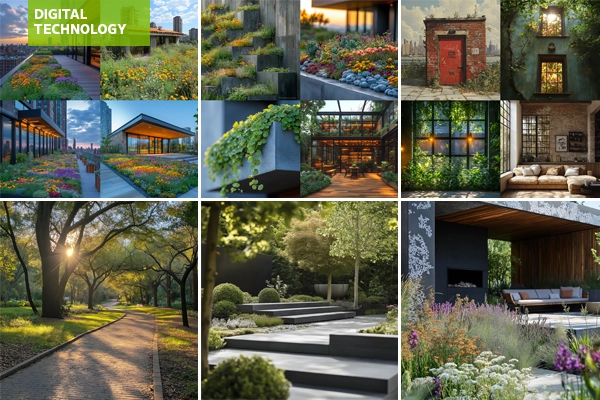
In the previous article in this series, we discussed what a text prompt is, prompt formulas, simple text prompts and complex prompts, text prompt components, as well as how to craft effective prompts. In this article, we will focus on the parameters in text prompts.
Parameters
Parameters are modifiers added to the end of the prompt to alter the way an image is generated. Parameters can change an image's aspect ratios, style quality and much more. You can combine multiple parameters in a single prompt to achieve specific results. Here are some examples of basic parameters, and how they can be used:
Multi Prompts
Using a double colon, ::, as a separator, Midjourney can blend multiple concepts of a prompt together. This multi-prompt feature allows users to assign relative importance to each concept in the prompt, allowing for more precise control over how they are blended.
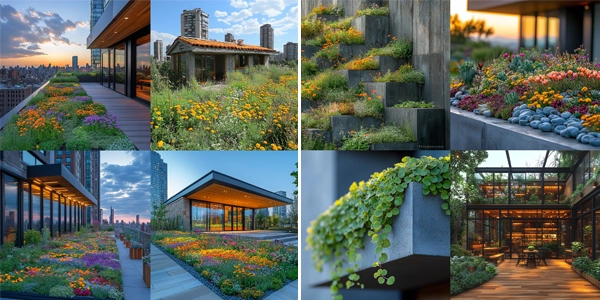
Adding a double colon to a prompt indicates that each part of the prompt is individual. For the prompt urban green roof, all words are considered together, and the Midjourney Bot produces images of a green roof with a city in the background. If the prompt is separated into two parts, urban:: green roof, both concepts are considered independently and then combined, resulting in a design where urban infrastructure elements such as concrete blocks are mixed with rooftop garden planting, creating a unique blend of both elements (Figure 1).
Prompt Weights
When a double colon is used to divide a prompt into separate parts, a number placed immediately after the double colon can be used to assign the relative importance to that part of the prompt.
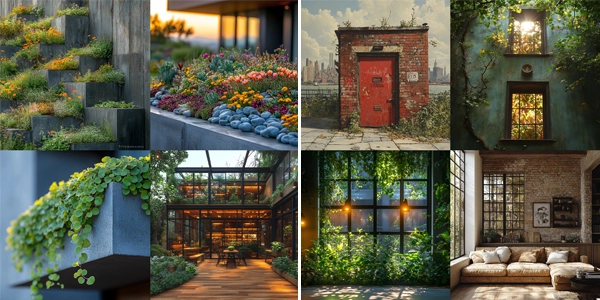
In the example below (Figure 2), with the prompt urban:: green roof, changing the prompt to urban::2 green roof gives the word urban twice as much importance as green roof, producing images focused twice as much on the urban context rather than the specific details of the green roof.
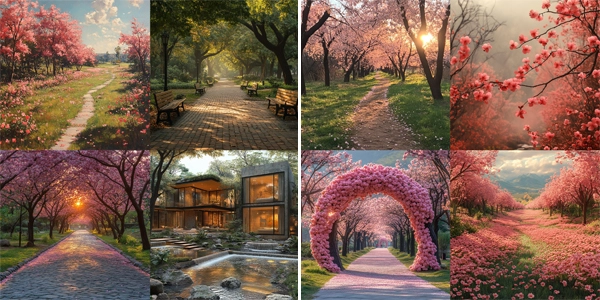
In the example below (Figure 3), a simple prompt is used: urban park filled with blooming trees. By modifying the weight of the words, the results are altered to emphasize either the urban park, or the blooming trees.
Negative Prompt Weights
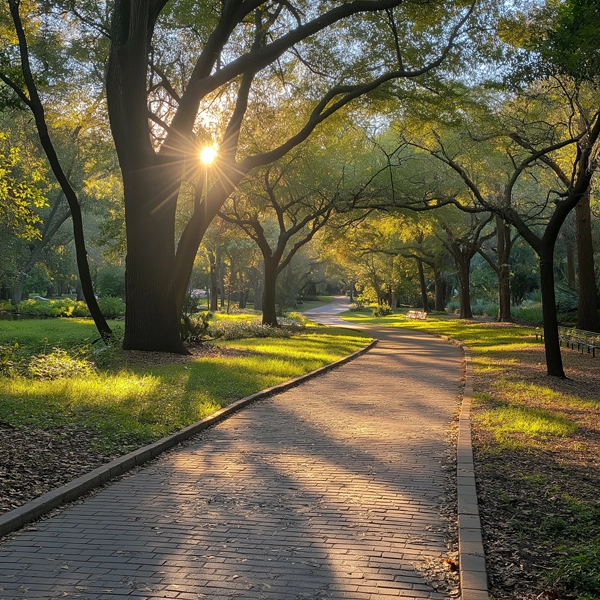
Similarly, negative weights can be added to parts of a multi-prompt to help remove unwanted elements; however, it is important to note that the sum of all weights should be a positive number. In the example below (Figure 4), using the same prompt, by simply adding a -0.5 negative weight to the word pink, the blooming trees and surrounding landscape are now devoid of any pink color.
Aspect Ratios
The aspect parameter allows the ratio of the generated image to be adjusted. An aspect ratio represents the width to height ratio of the image and is expressed as two numbers separated by a colon, such as 1:1 or 4:5.
Simply add --aspect <value>:<value>, or --ar <value>:<value> to the end of your prompt.
- The default aspect ratio is 1:1.
- The first number represents the width, and the second number represents the height.
- The aspect ratio will alter the shape and composition of the generated image.
- The --ar parameter requires whole numbers.
Examples of common Midjourney aspect ratios are as follows (shown in Figure 5 below):
--ar 1:1
--ar 5:4
--ar 3:2
--ar 7:4
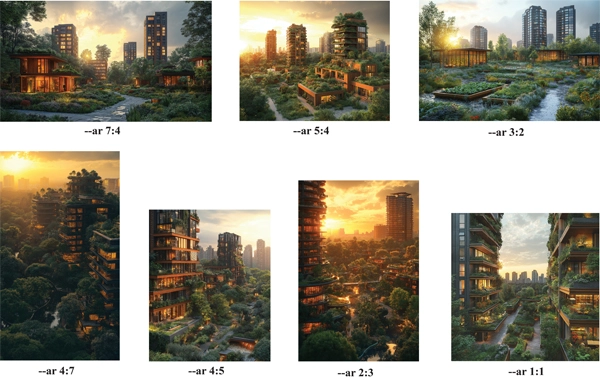
Prompt used: A sustainable urban neighborhood designed with landscape urbanism principles, showcasing a mix of high-rise green buildings, rooftop gardens, community farms, interconnected public spaces, photorealistic detail, golden hour, natural lighting --ar <value>
The "--no" parameter
The --no parameter tells the Midjourney Bot what not to include in the image. --no accepts multiple words separated with commas: --no element1, element2, element3, etc.
The --no parameter is equal to the -.5 weighting in a multi-prompt.
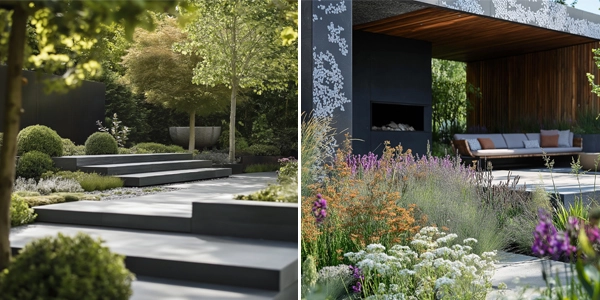
In Midjourney, every word in the prompt may influence the image. For optimal results, focus the prompt on what you would like to be generated and use the "--no" parameter to exclude specific elements, such as --no trees. For example, if the prompt is a modern garden design "without trees" or "please don't include trees," the image might still be generated with trees because the bot does not interpret "without" or "don't include" as a human would (Figure 6).
Quality
For the quality parameter, add --quality <value> or --q <value> to the end of your prompt. This makes it possible to control how much time the images take to generate, with the default value being 1.
A lower --q value means the images generate quicker using less GPU (graphics processing unit) time, however the results will be less detailed. Using a higher --q value takes a greater GPU time and will enhance the details of the image; however, it does not guarantee better or worse images, as it does not impact the resolution but simply the GPU time.
For example, the feature --q2 parameter takes 25% longer to generate the image.
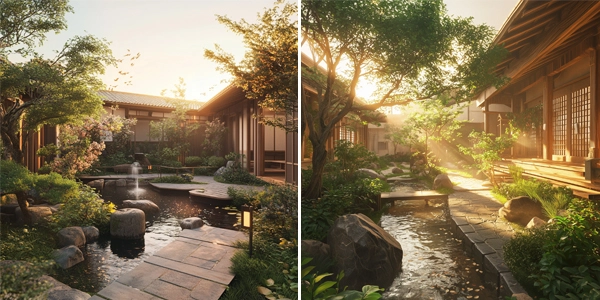
Prompt Used: Sustainable rooftop garden with a tranquil atmosphere, lush greenery, traditional Japanese elements, flowing water features, soft wind-blown leaves, serene stone pathways, natural wood structures, peaceful ambiance, Ghost of Tsushima art style, wide-angle shot, soft golden light, cinematic render.
In the next article of this series, to be published here on The Field next week, we will continue to cover advanced parameters.
For more on this topic, see:
- A Guide to Setting Up Midjourney on Discord: A Tutorial for Beginners
- Variation and Upscale Functions in Midjourney: A Beginner’s Guide
- Text Prompting, Part 1: Introduction to Fundamentals of Effective Text Prompting in Midjourney
- Midjourney Parameter List, Midjourney
- SKILL | ED: Exploring AI's Impact on Landscape Architecture
Article contributors:
- Qing Lana Luo, PLA, MLA, ASLA, Associate Professor of Landscape Architecture, Oklahoma State University
- Afshin Ashari, MLA, OALA, Assistant Professor, University of Guelph
- Radu Dicher, ASLA, LFA, BIM Manager, SWA
- Phillip Fernberg, ASLA, Director of Digital Innovation, OJB
- Benjamin George, ASLA, Associate Professor, Utah State University
- Tony Kostreski, PLA, ASLA, Senior Landscape Product Specialist, Vectorworks
- Matt Perotto, ASLA, Senior Associate, Janet Rosenberg & Studio
- Lauren Schmidt, PLA, ASLA, Parallax Team
Qing Lana Luo, PLA, MLA, ASLA, the author of this series, is an Associate Professor at Oklahoma State University with seventeen years of prior design experience in Boston, MA, and Beijing, China. She has held design leadership roles at renowned firms such as EDSA, Carol R. Johnson Associates (now Arcadis | IBI-Placemaking), and Turenscape, working on diverse projects worldwide, from urban parks to mixed-use developments. Her work has earned numerous international and national design awards. Qing Luo teaches core design classes at OSU as a tenured landscape architecture professor, focusing on sustainable design, technology, and professional practice. She showcases her land design, materials, technology, and sustainability expertise.
Afshin Ashari, MLA, OALA Assoc., the co-author of this series, is an Assistant Professor of Landscape Architecture at the University of Guelph. Before joining SEDRD, he was involved in a variety of architectural and landscape architectural projects in Iran and Canada. He holds a Master’s in Landscape Architecture and a Bachelor’s in Computer Engineering. Leveraging his interdisciplinary background, Afshin’s research interests focus on merging computational design approaches with mixed-reality immersive environments, particularly emphasizing exploring the integration of art and technology in public spaces. Afshin aims to push the boundaries of traditional design processes by incorporating computational tools and techniques to explore the application of algorithms, parametric modeling, data-driven approaches, and interactive immersive environments.