

.webp?language=en-US)

A Guide to Setting Up Midjourney on Discord: A Tutorial for Beginners
by Qing Lana Luo, PLA, ASLA, Afshin Ashari, OALA, Radu Dicher, ASLA, LFA, Phillip Fernberg, ASLA, Benjamin George, ASLA, Tony Kostreski, PLA, ASLA, Matt Perotto, ASLA, and Lauren Schmidt, PLA, ASLA
Registration is open for SKILL | ED: Exploring AI's Impact on Landscape Architecture. Whether you're a novice or an experienced user of AI, this event is designed to empower you and your practice.
Midjourney is an artificial intelligence program that specializes in creating images from textual descriptions, also called prompts, often regarded as an advanced image synthesis tool. It leverages deep learning techniques to interpret and visualize concepts provided by users in natural language, allowing for the creation of detailed and unique artworks or designs. This AI tool can generate images across a wide range of styles, from realistic photographs to abstract art, making it highly versatile for various creative applications.
The history of Midjourney is relatively recent. It was founded by David Holz in San Francisco, CA. Midjourney entered open beta on July 12, 2022. It emerged alongside several other AI-driven tools, such as DALL-E and Stable Diffusion, that significantly impact the creative industries by automating and enhancing the process of visual content creation.
Artists and designers, including landscape architects, architects, and interior designers, predominantly use Midjourney to generate visual content that complements their projects or ideas. For instance, it can be used to quickly prototype design concepts, create illustrations for books or articles, or even generate unique artwork for personal or commercial use. Its ability to produce high-quality images from simple text prompts makes it a valuable tool in industries where visual content is paramount.
Professional designers are often eager to try AI tools, but find the starting process confusing because, unlike traditional software or applications, Midjourney operates within Discord, a popular messaging platform. Users must join specific Discord servers dedicated to Midjourney to access and utilize its AI-driven image generation features, which differs from the expected norm of using a standalone website like midjourney.com.
This article will guide you through the steps to get started with Midjourney. Before we start, please note a few important things about using Midjourney:
- There is no software installation needed on your computer. It works via web browsers.
- It is not free anymore. You have options to pick a subscription.
- It works through Discord chat interface.
I. Register a Discord Account (free)
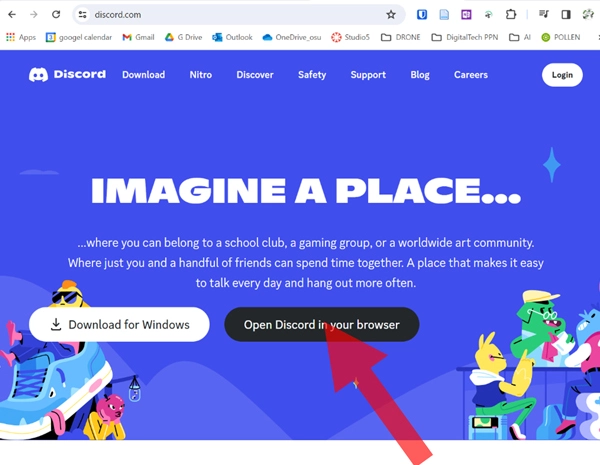
1. Go to Discord.com. Discord is an instant messaging social platform which allows communication through texts, voice calls, video calls, and media and files. Communication on Discord takes place in virtual communities called "servers.”
2. Click on “Open Discord in your browser.”
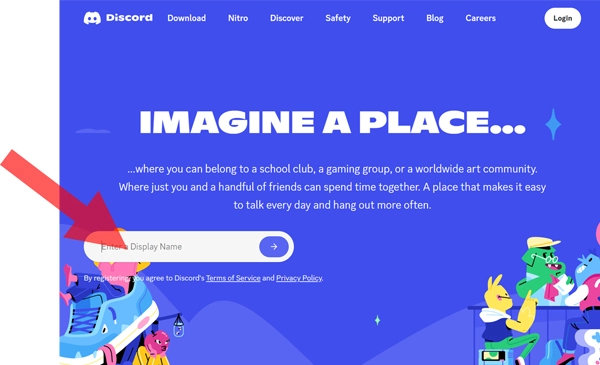
3. Enter a Display Name:
4. Then follow the on-screen instructions to create your account. Log in your account. Once you are in, click on “Explore Discoverable Servers.”
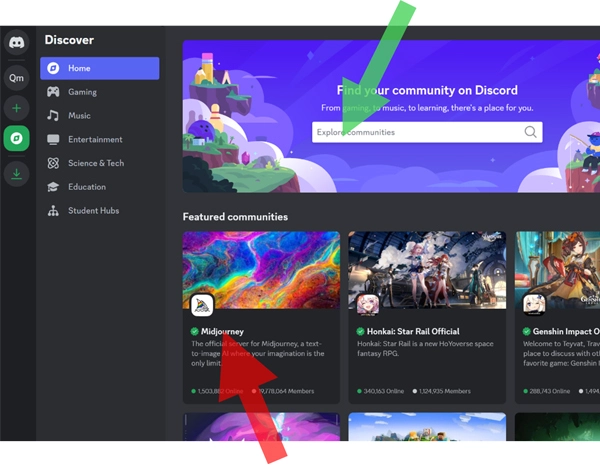
5. The community search page will appear. “Midjourney” (red arrow below) might show up on the page, as it is a popular server. If not, type “Midjourney” in the search box (green arrow) to search for it. Once you find the “Midjourney” icon, click on it.
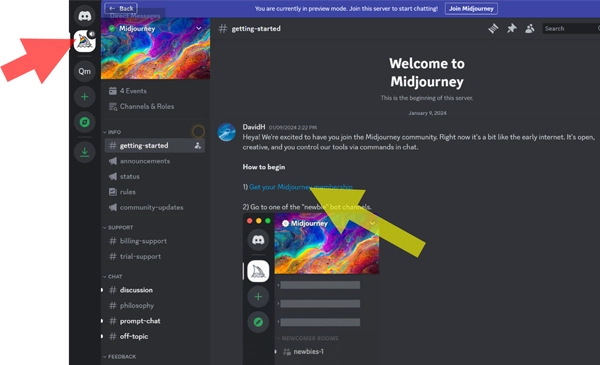
6. Now you are able to see the Midjourney server added on the left (red arrow below):
At this point, you still won’t be able to enter text prompts to generate images, as you don’t have a Midjourney subscription yet.
II. Get a Midjourney Subscription (paid)
1. In the above screenshot, click on “Get your Midjourney membership” (yellow arrow). It will take you to Midjourney website.
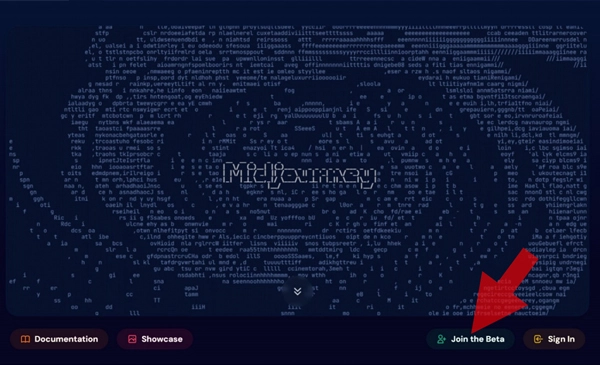
2. Click on “Join the Beta,” and follow the instructions to set up an account:
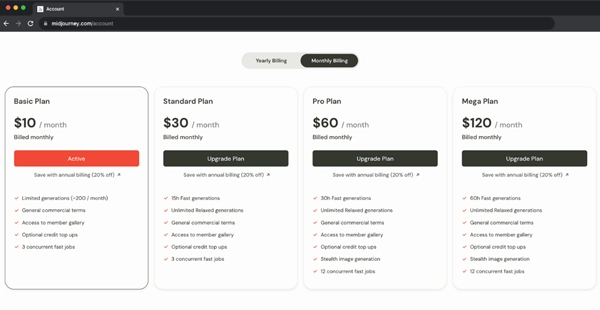
3. There are multiple tiers of subscription plans, so choose the level that offers what you need. If you are not sure what is a good fit, you can start from the Basic Plan. And please note that you can subscribe with either a monthly or yearly plan.
4. Once you make the payment for your subscription, you will receive an invite to join Midjourney server. Click on “Accept Invite,” and it will take you back to Discord.
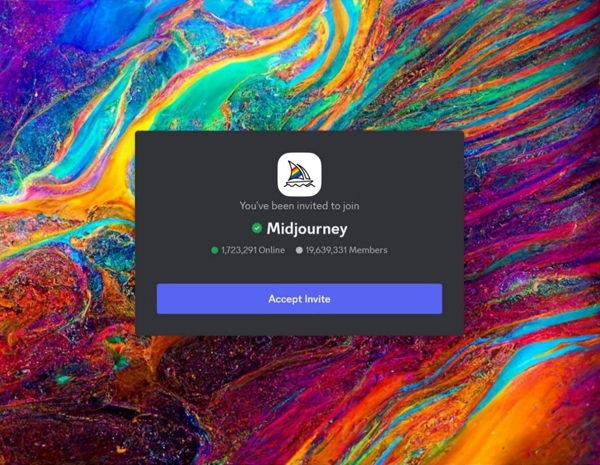
III. Use Midjourney in Discord
1. Once you are back in Discord, you will see the page below.
If not, make sure you click on the “Midjourney” server icon on the left (red arrow).
You will see several "newbies" channels (yellow arrow). Click on one of them and enter it.
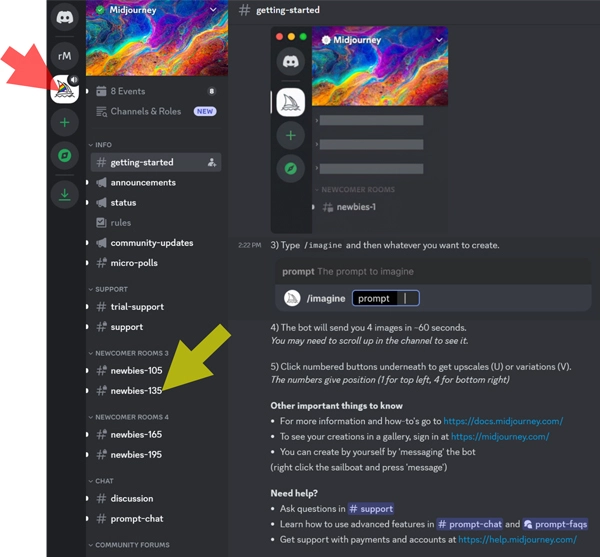
2. At the bottom of the page, there is a text box. Now type “/imagine prompt” and then add your text description to generate images!
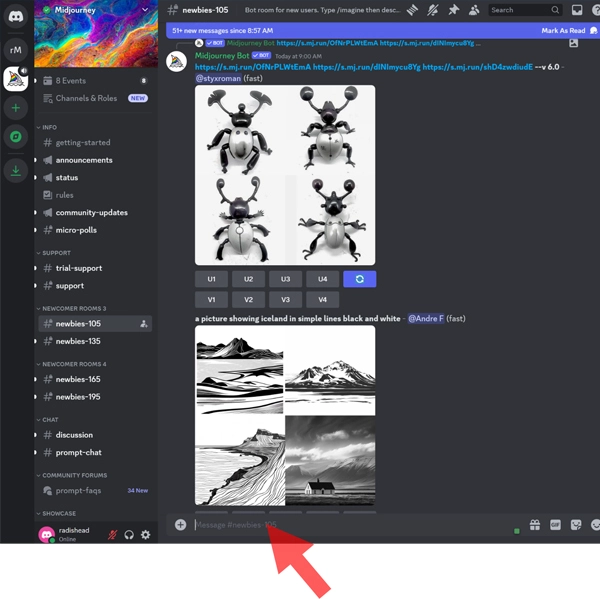
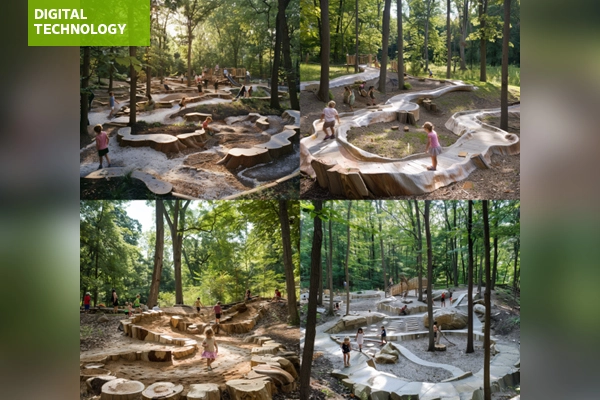
3. Midjourney will generate four images at one time. For example, I prompted “natural play area in woods with topography changes, kids playing,” and I got these four images:
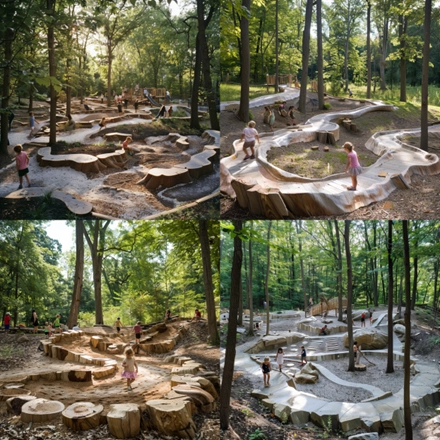
At this point, you have set up Midjourney in Discord, and are able to generate images from here. The advantage of being in one of the newbies channels: you are able to see how other people prompt and learn from them. The disadvantage is that the newbies channels are often moving very fast, and you will have to keep track of where your images are.
4. When you become a little more skilled at writing text prompts, you can opt to work one-on-one with the Midjourney Bot in the Discord Direct Messages. In one of the newbies channels, find “Midjourney Bot,” and click on it.
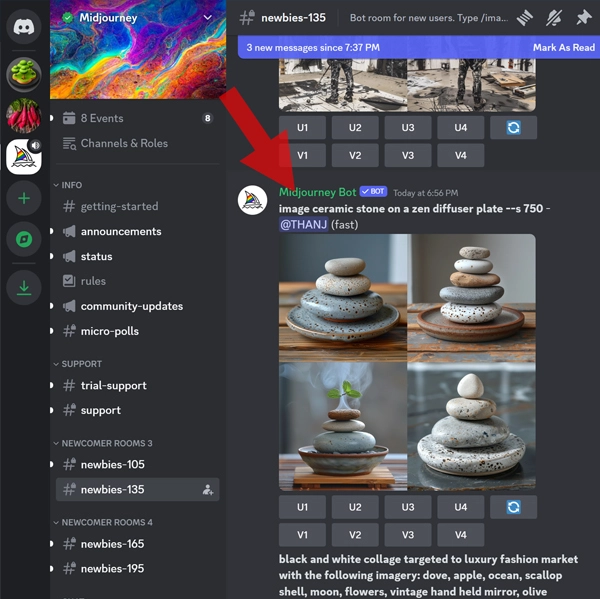
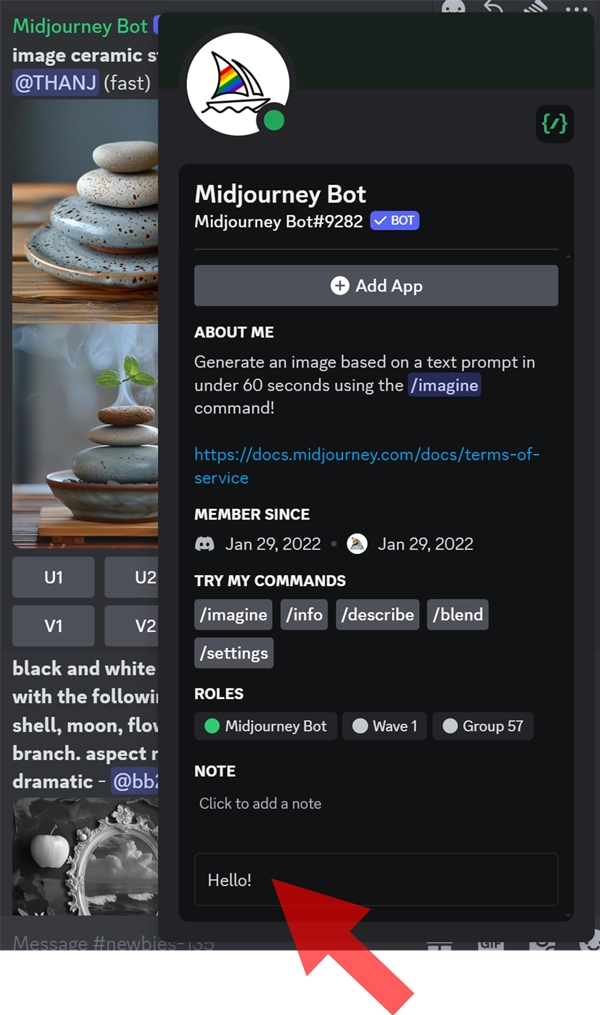
5. A pop-up window like the one below will appear. In the bottom text box, send any message to Midjourney Bot, such as “Hello!”
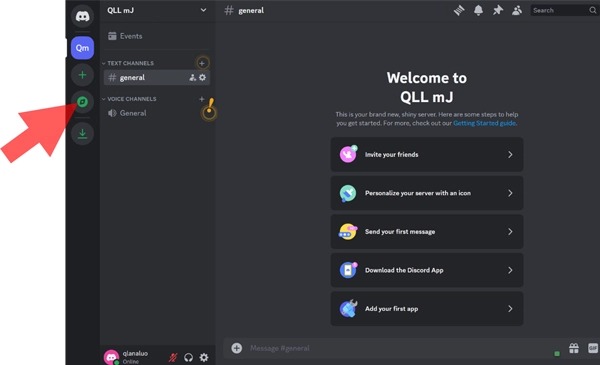
6. Then the “Direct Messages” icon (red arrow below) will add a “Midjourney Bot” (yellow arrow) channel where you can type “/imagine prompt” to generate images at the bottom chat box (green arrow)!
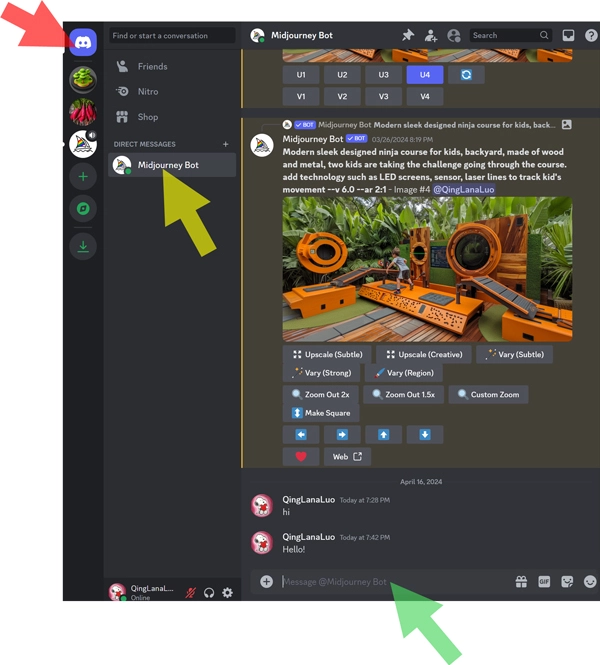
Here you will have a direct one-on-one conversation with Midjourney Bot where you can generate images alone without being cluttered by other users’ images.
Summary
In future articles, we'll cover further details and functions in Midjourney to shape the images you desire. For now, this guide is dedicated to helping you get started with Midjourney. Again, it is a powerful tool for brainstorming design ideas, exploring broad concepts, and generating graphic assets. Embrace the start of this transformative journey!
Tutorial contributors:
- Qing Lana Luo, PLA, MLA, ASLA, Associate Professor of Landscape Architecture, Oklahoma State University
- Afshin Ashari, MLA, OALA, Assistant Professor, University of Guelph
- Radu Dicher, ASLA, LFA, BIM Manager, SWA
- Phillip Fernberg, ASLA, Director of Digital Innovation, OJB
- Benjamin George, ASLA, Associate Professor, Utah State University
- Tony Kostreski, PLA, ASLA, Senior Landscape Product Specialist, Vectorworks
- Matt Perotto, ASLA, Senior Associate, Janet Rosenberg & Studio
- Lauren Schmidt, PLA, ASLA, Parallax Team
Qing Lana Luo, PLA, MLA, ASLA, the main author of this article, is an associate professor at Oklahoma State University with seventeen years of prior design experience in Boston, MA, and Beijing, China. She has held design leadership roles at renowned firms such as EDSA, Carol R. Johnson Associates (now Arcadis | IBI-Placemaking), and Turenscape, working on diverse projects worldwide, from urban parks to mixed-use developments. Her work has earned numerous international and national design awards. Currently, Qing Luo teaches core design classes at OSU as a tenured landscape architecture professor, focusing on sustainable design, technology, and professional practice. She showcases her expertise in land design, materials, technology, and sustainability.